
How to Turn Off VPN on iPhone, Android, Windows, and Mac (2026 Guide)
Quick Answer: How to Turn Off VPN
To turn off VPN quickly, open your device settings, find the VPN section, and toggle the connection off or tap Disconnect. On iPhone, go to Settings, then General, then VPN and Device Management. On Android, go to Settings, then Network and Internet, then VPN. On Windows, open Settings, then Network and Internet, then VPN. On Mac, open System Settings and click VPN in the sidebar. The exact steps for each device are explained in detail below.
How to Turn Off VPN on iPhone
If you want to turn off VPN on your iPhone, follow these steps:
- Open the Settings app and tap General.
- Tap VPN & Device Management, then tap VPN.
- Find your active VPN configuration and toggle Status to Off.
If you installed a third-party VPN app, you can also open the app itself and tap the Disconnect or power button on its home screen. Some apps also add a VPN toggle directly on the main Settings screen, just below Personal Hotspot, which is the fastest way to turn off VPN on iPhone.
How to Turn Off VPN on Android
To turn off VPN on Android:
- Open Settings and tap Network & Internet.
- Tap VPN. If you do not see it, use the search bar at the top of Settings and type VPN.
- Tap the name of the connected VPN, then tap Disconnect or toggle it Off.
On Samsung devices the path is usually Settings, then Connections, then More connection settings, then VPN. As with iPhone, opening your VPN provider’s app and tapping Disconnect works on any Android phone.
How to Turn Off VPN on Windows
To turn off VPN on Windows 10 or Windows 11:
- Open Settings and select Network & Internet.
- Click VPN in the left-hand menu.
- Select your VPN connection and click Disconnect.
You can also click the network icon in the taskbar, select your VPN connection, and click Disconnect from there. If your VPN runs as a desktop app, right-click its system tray icon and choose Disconnect or Quit.
How to Turn Off VPN on Mac
To turn off VPN on Mac:
- Open System Settings (or System Preferences on older macOS).
- Click VPN in the sidebar.
- Select the active VPN connection and click Disconnect, or toggle it Off.
Many VPN apps also place an icon in the menu bar. Clicking it usually gives you a one-click Disconnect option, which is the quickest way to turn off VPN on Mac.
Step-by-Step Infographic
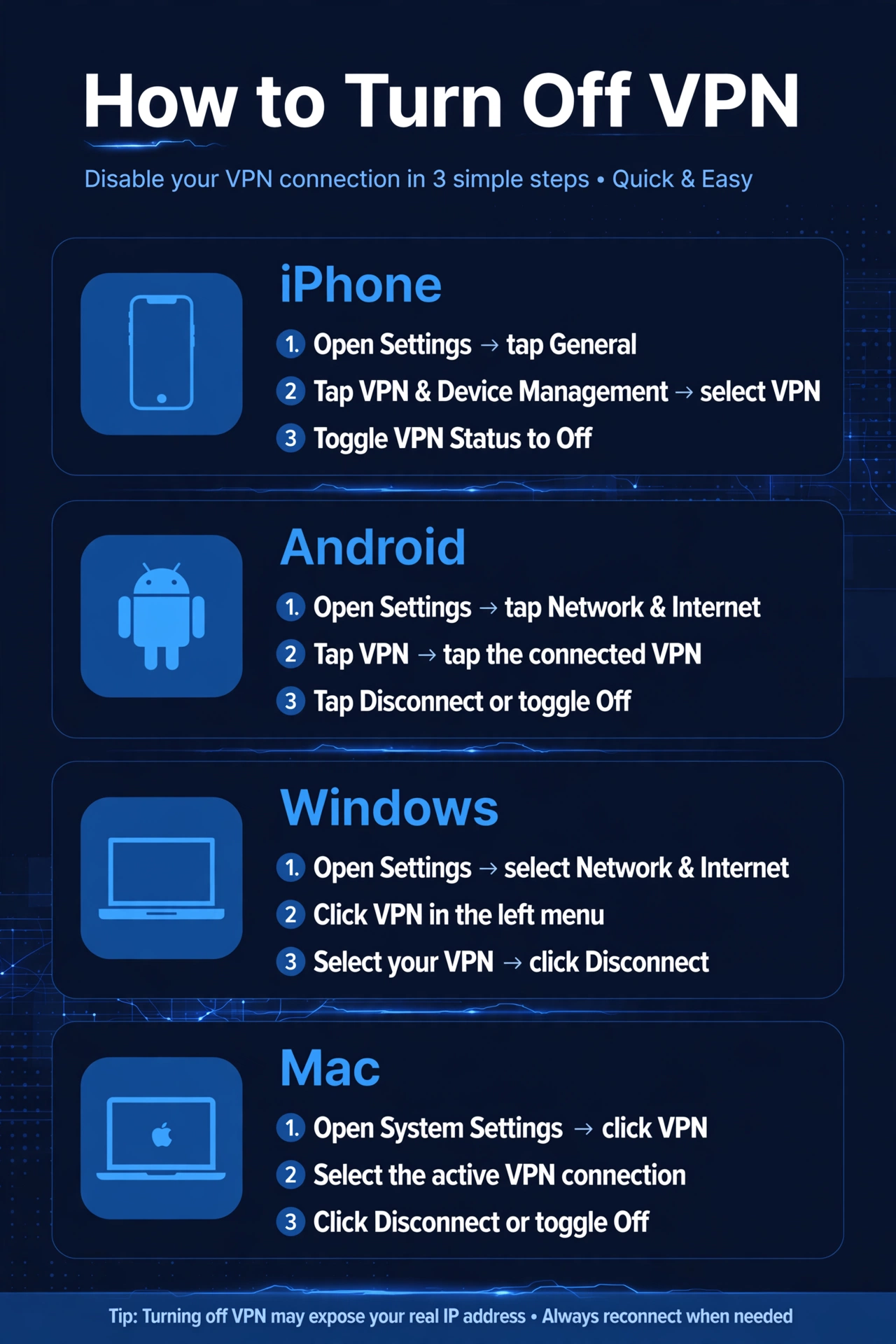
Here is a quick visual summary of how to turn off VPN on all four platforms:
Why Would You Turn Off Your VPN?
There are several legitimate reasons to turn off VPN temporarily:
- Banking and payment apps: Many banks block logins from VPN IP addresses as a fraud-prevention measure.
- Slow connection speeds: Routing traffic through a distant server can cut your speed significantly. Turning off VPN restores your direct connection.
- Local content and services: Food delivery, ride-sharing, and local news apps often need your real location to work correctly.
- Work or school networks: Some corporate networks conflict with personal VPN connections.
- Troubleshooting: If a website will not load, turning off VPN is a quick way to check whether the VPN is the cause.
What Happens When You Turn Off VPN?
When you turn off VPN, your internet traffic no longer passes through the encrypted tunnel. Your real IP address becomes visible to websites, your internet provider can see the sites you visit, and you lose the geo-unblocking benefits of the VPN. Your connection will usually get faster, but it will also be less private. If you only need a short break, consider reconnecting when you are done.
Troubleshooting: VPN Keeps Turning Back On
If your VPN reconnects itself right after you turn it off, check these settings:
- Auto-connect or kill switch: Many VPN apps have an auto-connect feature. Open the app settings and disable auto-connect on startup or on untrusted networks.
- Always-on VPN (Android): Go to Settings, then Network and Internet, then VPN, tap the gear icon next to your VPN, and turn off Always-on VPN and Block connections without VPN.
- Connect on demand (iPhone): In Settings, then General, then VPN and Device Management, tap the info icon next to your configuration and turn off Connect On Demand.
- Work profiles: If your device is managed by an employer, the VPN may be enforced by policy and cannot be permanently disabled.
FAQs About Turning Off VPN
Is it safe to turn off VPN?
Yes, turning off VPN is safe for everyday browsing on trusted networks. You simply lose the encryption and IP masking the VPN provided. Avoid entering sensitive information on public Wi-Fi while your VPN is off.
How do I turn off VPN on Chrome or my browser?
Browsers do not have a built-in VPN, but VPN extensions do. Click the puzzle-piece extensions icon in Chrome, find your VPN extension, and toggle it off or remove it. The steps above cover system-wide VPN connections.
Will turning off VPN affect my downloads?
Active downloads may pause or fail when the connection drops during the switch. It is best to pause large downloads before you turn off VPN, then resume them after.
How can I tell if my VPN is really off?
Search “what is my IP” in your browser and compare the result with your real location. If it shows your actual city and internet provider, the VPN is off.
Final Thoughts
Knowing how to turn off VPN on iPhone, Android, Windows, and Mac is a basic skill every VPN user should have. The process takes less than a minute on any device: open settings, find the VPN section, and disconnect. Just remember what you give up when the tunnel is down, and reconnect whenever privacy matters. If your VPN keeps turning itself back on, the auto-connect settings above will fix it for good. For more device tutorials, browse our How-To Guides.