How to Screenshot on HP Laptop: 7 Easy Methods (2026)
Quick Answer
Learning how to screenshot on HP laptop models is easy: press Windows + Print Screen to save a full-screen capture instantly, or press Windows + Shift + S to grab just part of your screen. The Snipping Tool adds markup options, and the Xbox Game Bar handles gameplay. This guide covers all seven methods, where your files go, and how to fix the most common problems.
Taking a screenshot on an HP laptop is a skill you will use every week, from saving receipts to sharing error messages with tech support. Windows includes several built-in tools, and HP keyboards have a couple of quirks worth knowing first.
Every method here is free and already installed. Once you understand how to screenshot on HP laptop computers, you will never need a third-party capture app. Below are the seven methods, from fastest to most flexible.
Method 1: The Print Screen Key (Full-Screen Capture)
The classic approach starts with the Print Screen key, usually labeled PrtSc or PrtScn on the top row of your HP keyboard. Pressing it once copies an image of your entire screen to the clipboard. Nothing appears to happen, which confuses a lot of first-timers, but the capture is stored and ready to paste.
Press PrtSc, then open Paint and press Ctrl + V to paste. From there you can crop and save. On many HP models you must hold Fn while pressing PrtSc, since the key shares space with another function.
Method 2: Windows + Print Screen (Auto-Save to a Folder)
Press the Windows key and Print Screen together. Your screen will briefly dim to confirm the capture, and Windows saves a PNG file in the Screenshots folder inside your Pictures library.
This is the fastest method for repeated captures. Note that if OneDrive auto-save is turned on, your files may land in the OneDrive Pictures folder instead of the local one.
Method 3: Windows + Shift + S (Capture Part of Your Screen)
For precision, press Windows + Shift + S. A small toolbar offers rectangular, freeform, window, or full-screen capture. Drag to select your area, and the capture goes to your clipboard.
A notification appears in the corner of your screen. Click it to open the capture in the Snipping Tool, where you can highlight, draw, crop, and save. This is the shortcut most people use day to day, and it works on every modern HP laptop running Windows 10 or 11.
Method 4: The Snipping Tool App (Windows 11)
Windows 11 includes a full Snipping Tool app that combines the old Snipping Tool and Snip and Sketch. Open it by pressing the Windows key and typing “Snipping Tool”, then click New and choose your capture mode. The delay option (three or ten seconds) is perfect for capturing menus or hover states that disappear when you click away.
The editor opens with pens, a highlighter, an eraser, and a crop tool for markup before saving. It can also record screen video. Check Microsoft’s official Snipping Tool guide for the newest features.
Method 5: Xbox Game Bar (Gamers and Quick Clips)
Press Windows + G to open the Xbox Game Bar, even if you are not gaming. The Capture widget lets you take a screenshot with Windows + Alt + Print Screen, or record the last 30 seconds of on-screen action. Captures are saved to the Captures folder inside your Videos library.
This is ideal for HP Victus and Omen gaming laptops. If the overlay does not open, enable Game Bar in Settings under Gaming.
Method 6: Alt + Print Screen (Active Window Only)
When you only need one window, press Alt + Print Screen. This copies just the currently focused window to the clipboard, ignoring the taskbar, desktop, and other open apps. Paste it into Paint or any editor with Ctrl + V and save.
This skips the cropping step entirely, which is great for clean documentation. Like plain Print Screen, it copies to the clipboard rather than saving a file.
Method 7: Fn Combos on HP Keyboards (2-in-1s and Compact Laptops)
Some HP 2-in-1s, tablets, and compact models lack a dedicated Print Screen key or share it with another function. Hold Fn and press the PrtSc key (often combined with Insert). For an auto-saving capture, press Windows + Fn + Print Screen.
Some HP tablets capture with the physical Windows button plus Volume Down. HP layouts vary between the Pavilion, Envy, Spectre, and Victus families, so check your model’s manual if the standard combos fail.
Where Your Screenshots Are Saved on an HP Laptop
Now that you know how to screenshot on HP laptop computers, here is where each method stores the result so you can find it later:
- Windows + Print Screen: saved automatically to Pictures, then Screenshots.
- Plain Print Screen or Alt + Print Screen: copied to the clipboard only; you must paste into an app and save manually.
- Windows + Shift + S and Snipping Tool: opens in the Snipping Tool editor; click the save icon to choose a location, or find auto-saves in Pictures, then Screenshots.
- Xbox Game Bar: saved automatically to Videos, then Captures.
If a Windows + Print Screen file goes missing, check whether OneDrive redirected your Pictures folder by looking at the folder’s address bar.
Which Method Should You Use?
Here is how the seven methods compare at a glance:
| Method | What It Captures | Saved Automatically? | Best For |
|---|---|---|---|
| Print Screen | Full screen | No, clipboard only | Quick paste into a document |
| Windows + Print Screen | Full screen | Yes, Pictures folder | Fast repeated captures |
| Windows + Shift + S | Area, window, or full screen | Clipboard, opens editor | Everyday precise captures |
| Snipping Tool app | Area, window, or full screen | Manual save from editor | Delayed captures and markup |
| Xbox Game Bar | Screen or gameplay clips | Yes, Videos folder | Gaming stills and clips |
| Alt + Print Screen | Active window only | No, clipboard only | Clean single-window shots |
| Fn + Print Screen combos | Full screen | Depends on combo used | 2-in-1s and compact HP keyboards |
For most people, Windows + Shift + S is the daily driver. Use Windows + Print Screen when you want automatic saves, and the Snipping Tool when you need a delay or markup.
Editing and Cropping Your Screenshots
A raw capture is rarely finished. In the Snipping Tool editor you can crop, highlight, and draw before saving. Choose PNG for crisp text or JPG for smaller file sizes.
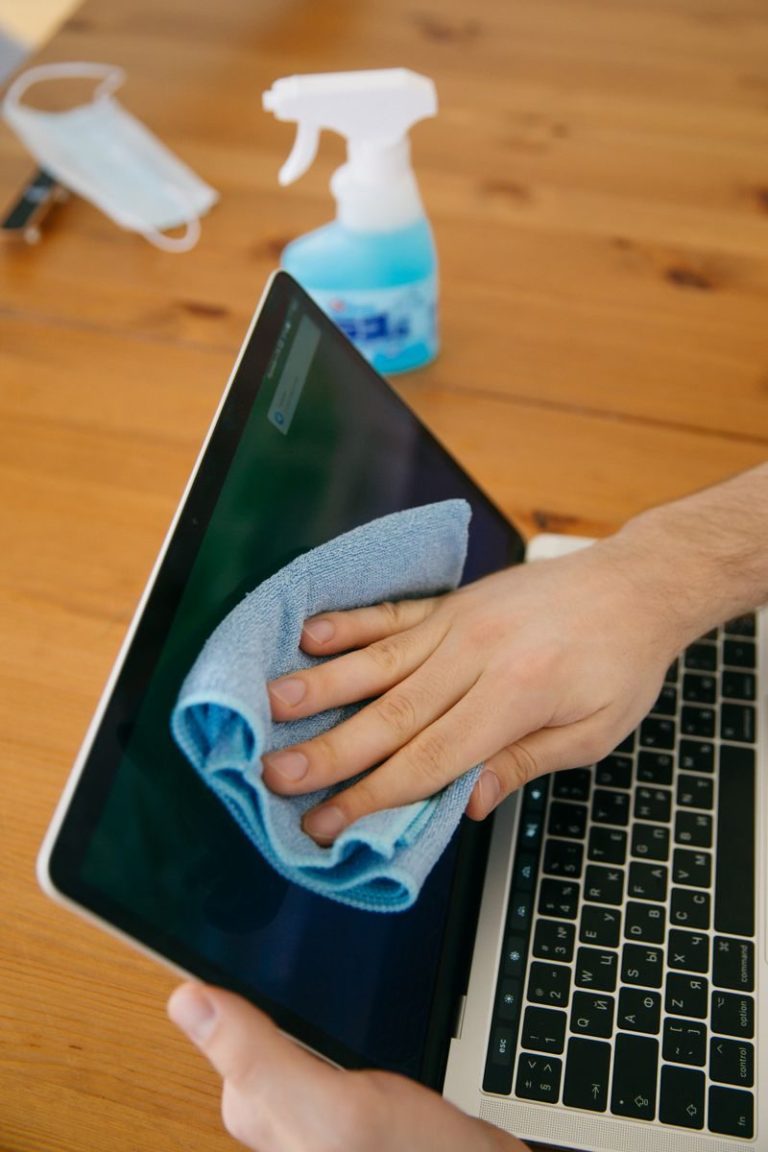
In Paint, use the Select tool to crop and the text tool to add labels. One tip that improves every screenshot: if your captures show smudges or dust spots, give your display a proper wipe first by following our guide on how to clean a laptop screen. A clean screen makes text in your screenshots noticeably sharper.
Troubleshooting: Print Screen Not Working on an HP Laptop
If pressing Print Screen does nothing, work through these fixes in order:
- Try the Fn key. On most HP laptops Print Screen is a secondary function, so press Fn + PrtSc together. Some models need Fn + Windows + PrtSc for the auto-save version.
- Check F Lock or Fn Lock. If your keyboard has an Fn Lock toggle (sometimes Fn + Esc), it may be reversing each key’s function. Toggle it and try again.
- Look for a OneDrive conflict. OneDrive can hijack the Print Screen key for its own screenshot feature. Right-click the OneDrive icon, open Settings, and disable the Print Screen option.
- Confirm Game Bar shortcuts are enabled. If Windows + Alt + Print Screen fails, open Settings, then Gaming, then Xbox Game Bar, and make sure the feature is turned on.
- Update the keyboard driver. In Device Manager, expand Keyboards, right-click your keyboard, and choose Update driver. Restart afterward.
- Rule out system slowness. If the capture works but the laptop freezes briefly each time, the machine may be struggling. The steps in our guide on how to fix a slow laptop can restore responsiveness.
Frequently Asked Questions
Where do screenshots go on an HP laptop?
Windows + Print Screen saves automatically to the Screenshots folder inside Pictures. Plain Print Screen and Alt + Print Screen copy to the clipboard, so you must paste and save manually. Game Bar captures go to the Captures folder inside Videos.
How do I take a screenshot on an HP laptop without the Print Screen key?
Press Windows + Shift + S to select any area, or open the Snipping Tool from the Start menu. Neither requires the Print Screen key.
Why is my Print Screen key not working on my HP laptop?
Usually the Fn key: Print Screen is a secondary function on HP keyboards, so press Fn + PrtSc. Other causes include Fn Lock, OneDrive intercepting the key, or an outdated keyboard driver.
How do I screenshot just one window on an HP laptop?
Focus the window, press Alt + Print Screen, then paste into Paint with Ctrl + V and save.
Can I record my screen on an HP laptop, not just take screenshots?
Yes. Press Windows + G for Game Bar clips, or use the Snipping Tool’s video recording mode in Windows 11. Both are built in and free.
How do I edit a screenshot after taking it?
Use the Snipping Tool to crop, highlight, and draw before saving. Paste clipboard captures into Paint for basic edits. Save interface shots as PNG for the sharpest text.
Key Takeaways
- Windows + Print Screen saves a full-screen capture automatically; plain Print Screen copies it to the clipboard for pasting.
- Windows + Shift + S is the most flexible daily option, letting you capture any area, window, or the full screen with instant markup.
- The Snipping Tool app adds timed captures and video recording, while Xbox Game Bar is best for gameplay stills and clips.
- On HP keyboards, Print Screen often needs the Fn key held down; check Fn Lock, OneDrive conflicts, and drivers if it stops working.
- Auto-saved screenshots live in Pictures, then Screenshots; Game Bar captures live in Videos, then Captures.
Once you know how to screenshot on HP laptop machines, capturing anything on your screen becomes second nature. Pick the method that fits the moment, and keep this guide bookmarked for the day the Print Screen key refuses to cooperate.