How to Fix Slow Laptop: 9 Proven Speed Fixes
Quick Answer
If you want to know how to fix slow laptop performance fast, start with these three moves: disable unnecessary startup programs, free up at least 15 to 20 percent of your drive space, and install all pending system updates. For most people, these three steps alone restore a large share of lost speed. The full guide below walks through six more fixes, from malware scans to simple hardware upgrades.
A laptop that once booted in seconds can gradually turn into a machine that takes minutes just to open a browser. The good news is that a sluggish laptop rarely means a dying laptop. In most cases, the slowdown comes from software clutter, a full drive, or aging hardware that can be tuned or upgraded. This guide walks you through nine practical fixes, ordered from easiest to most involved. By the end, you will know exactly how to fix slow laptop lag and keep it from coming back.
Why Laptops Slow Down Over Time
Slowdowns rarely have one single cause. They are normally a mix of small problems stacking up over months of use.
- Too many startup programs. Every app that launches at boot steals CPU and memory before you even open anything. Over time, installers quietly add themselves to the startup list.
- A nearly full drive. When your storage drive has less than 10 to 15 percent free space, the operating system struggles with temporary files, updates, and virtual memory.
- Missing updates. Outdated operating systems and drivers miss out on performance improvements and security patches that keep things running efficiently.
- Malware and bloatware. Hidden crypto miners, adware, and preinstalled trial software can eat resources in the background without you noticing.
- Dust and heat. Dust clogged vents make the cooling system work harder. When the processor overheats, it slows itself down to avoid damage, a process called thermal throttling.
- Aging hardware. Old spinning hard drives and small amounts of RAM simply cannot keep up with modern software demands.
How to Fix Slow Laptop: Step-by-Step Solutions
Work through these fixes in order. Each one takes only a few minutes, and you can stop as soon as your laptop feels fast enough. Most people see a clear improvement by step five.
1. Disable Unnecessary Startup Programs
On Windows, press Ctrl plus Shift plus Esc to open Task Manager, then click the Startup apps tab. You will see a list of programs with a startup impact rating. Disable anything rated High that you do not need the moment you log in, such as chat apps, game launchers, or update helpers. On a Mac, go to System Settings, then General, then Login Items, and remove apps you do not use daily.
2. Free Up Disk Space
Aim to keep at least 15 to 20 percent of your drive free. Start by emptying the Recycle Bin and deleting the contents of your Downloads folder after moving anything important. On Windows, open Settings, then System, then Storage, and run Storage Sense to clear temporary files automatically. On a Mac, use the Storage settings to review large files and remove old downloads.
3. Install All System and Driver Updates
Updates are not just about security. They regularly include performance fixes and better hardware support. On Windows, go to Settings, then Windows Update, and install everything pending, including optional driver updates. On a Mac, open System Settings and check Software Update. After updating, restart your laptop so every change takes effect.
4. Scan for Malware and Remove Bloatware
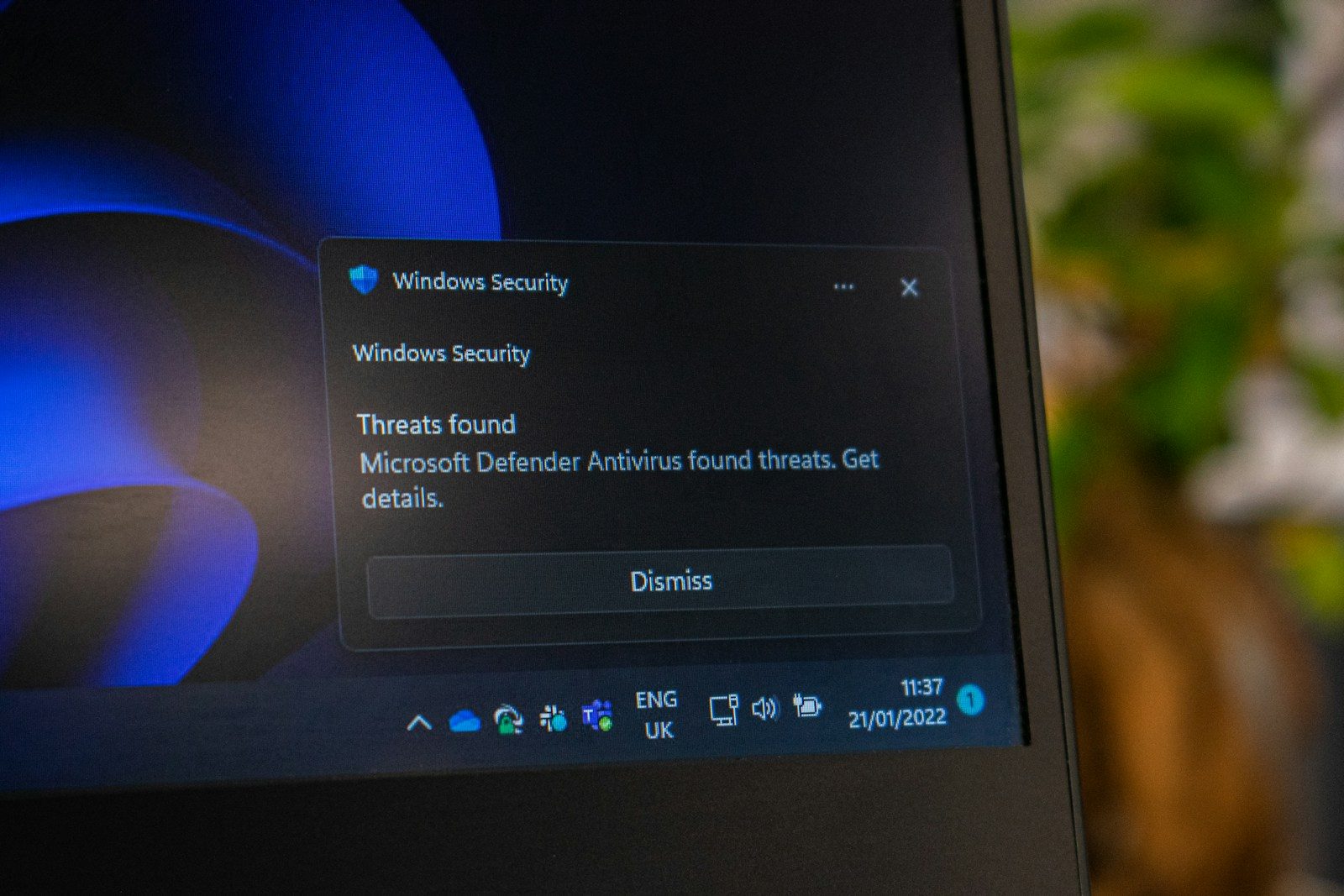
Malware is a classic hidden cause of slow performance. Run a full system scan with Windows Security on Windows or a trusted scanner on Mac. For extra protection, consider running a second opinion scan with a reputable free antivirus program to catch anything the built in tools missed. While you are at it, uninstall programs you never use. On Windows, check Settings, then Apps, then Installed apps, and remove trial software, toolbars, and duplicate utilities.
5. Turn Off Visual Effects
Animations, transparency, and shadows look nice, but they cost processing power, especially on older machines. On Windows, search for “Adjust the appearance and performance of Windows” and select “Adjust for best performance,” or pick Custom and keep only the effects you like. On a Mac, go to System Settings, then Accessibility, then Display, and enable “Reduce motion” and “Reduce transparency.”
6. Clean the Fans and Vents
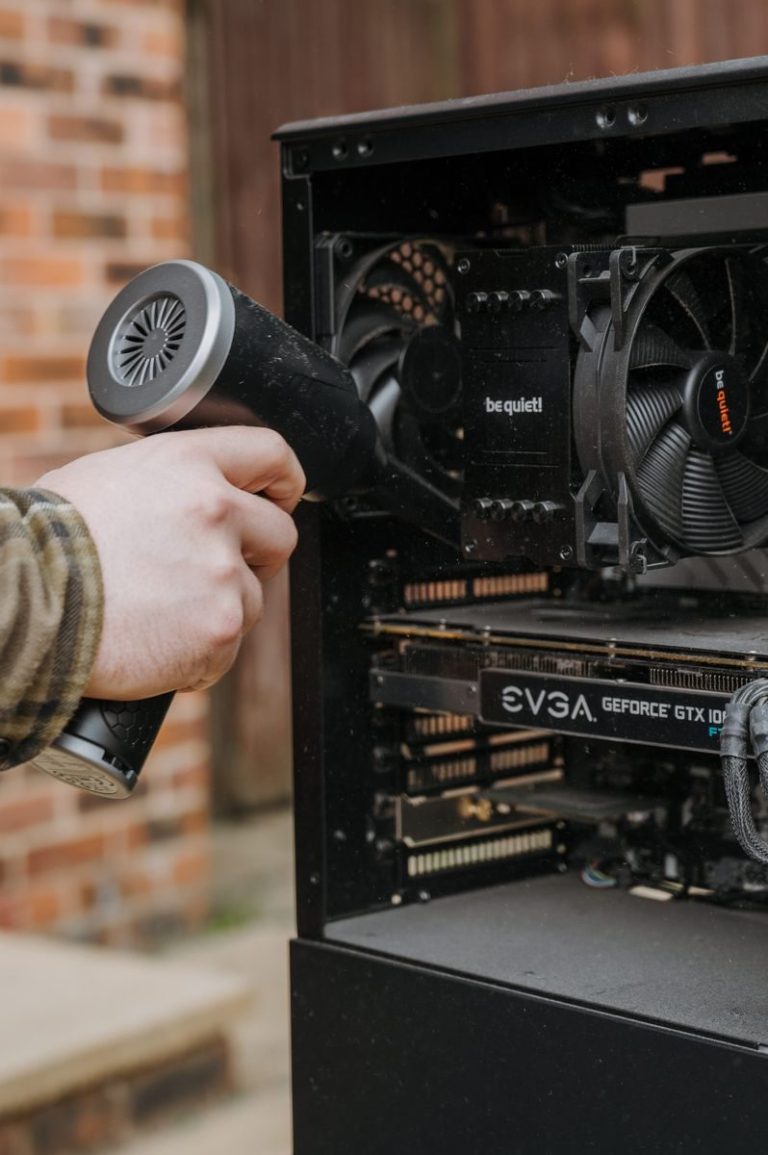
If your laptop runs hot, gets loud, or slows down during heavy tasks, dust may be blocking the cooling system. Shut the laptop down, then use short bursts of compressed air to blow dust out of the intake and exhaust vents. For a deeper clean, cleaning your laptop’s fan properly can lower temperatures by several degrees.
7. Upgrade to an SSD
The single biggest hardware upgrade for an old laptop is swapping a spinning hard drive for a solid state drive. An SSD can cut boot times from minutes to seconds and makes every app launch feel dramatically faster. Most 2.5 inch SATA SSDs fit older laptops, and many newer models accept even faster NVMe drives. Check your laptop’s manual or the manufacturer’s support page for compatible drive types.
8. Add More RAM
If you regularly have many browser tabs and apps open, 4 GB of RAM is no longer enough. Upgrading to 8 GB or 16 GB lets your laptop juggle more tasks without constantly swapping data to the slower drive. Check how much RAM your model supports and whether the memory slots are user accessible. Some ultrabooks have soldered memory that cannot be upgraded, so verify before buying.
9. Reset the System as a Last Resort
If nothing else worked, a fresh start can help. Windows offers a “Reset this PC” option that reinstalls the operating system while letting you keep your personal files. On a Mac, you can erase and reinstall macOS from Recovery Mode. Back up your important files first, even when you choose the keep my files option, because things can go wrong. A reset wipes away years of accumulated clutter, broken registry entries, and conflicting software in one move.
Quick Software Fixes vs Hardware Upgrades
Use this comparison to decide where to start and when an upgrade is worth it.
| Fix | Type | Cost | Difficulty | Best For |
|---|---|---|---|---|
| Disable startup programs | Software | Free | Easy | Slow boot times |
| Free up disk space | Software | Free | Easy | Full drive warnings |
| Install updates | Software | Free | Easy | Outdated systems |
| Malware scan and cleanup | Software | Free | Easy | Suspicious slowdowns |
| Reduce visual effects | Software | Free | Easy | Older laptops |
| Clean fans and vents | Maintenance | Free | Easy | Overheating laptops |
| Upgrade to an SSD | Hardware | $30 to $100 | Moderate | Slow boot and app loading |
| Add more RAM | Hardware | $20 to $80 | Moderate | Multitasking slowdowns |
| Reset the system | Software | Free | Moderate | Nothing else worked |
Pro Tip
After you finish the fixes, prevent the slowdown from coming back. Once a month, check your startup programs and uninstall apps you no longer use. Keep at least 20 percent of your drive free, and let updates install on schedule instead of postponing them. Small monthly habits take five minutes and keep your laptop feeling new far longer. For official performance guidance straight from the source, Microsoft publishes Windows performance and update resources on its website.
Key Takeaways
- Start with the free fixes: startup programs, disk space, updates, malware scan, and visual effects solve most slowdowns.
- Keep at least 15 to 20 percent of your drive free so the operating system has room to work.
- Dust and heat cause hidden slowdowns, so clean your vents regularly.
- An SSD upgrade is the best value hardware fix for laptops still running on old spinning drives.
- Reset the operating system only as a last resort, and back up your files first.
Frequently Asked Questions
Why is my laptop suddenly so slow?
A sudden slowdown is often caused by a recent update installing in the background, a new program added to startup, malware, or a drive that just filled up. Check Task Manager or Activity Monitor for any process using an unusual amount of CPU or memory, and run a malware scan to rule out infections.
Will a factory reset make my laptop faster?
Yes, a reset usually restores much of the original speed because it removes accumulated clutter, broken settings, and conflicting software. Try the simpler software fixes first, since a reset means reinstalling your apps and reconfiguring everything. Always back up your files before resetting.
Is 4 GB of RAM enough in 2026?
For basic web browsing and documents it can work, but it struggles with multitasking, video calls, and modern browsers with many tabs open. If your laptop supports it, upgrading to 8 GB or 16 GB is one of the cheapest ways to eliminate lag when switching between apps.
Do these fixes work on both Windows and Mac?
Yes. The principles behind every fix are the same on both platforms: reduce startup load, free up space, stay updated, remove malware, manage heat, and upgrade weak hardware when needed. The menu names differ slightly, and this guide covers both where it matters.
How often should I maintain my laptop to keep it fast?
A quick monthly check is enough: review startup programs, clear temporary files, and uninstall unused apps. Clean the vents every three to six months depending on how dusty your environment is. Staying on top of small tasks prevents the big slowdowns from ever building up.
Should I upgrade my old laptop or buy a new one?
If your laptop is less than six or seven years old and the slowdown is mainly software related, the fixes in this guide plus an SSD or RAM upgrade can give it several more good years. Consider a new machine if the processor is very old, the battery is failing, or upgrade parts cost more than the laptop is worth.