How to Clean a Laptop Screen: A Safe Step-by-Step Guide for 2026
Your laptop screen is the one part of the machine you stare at for hours every day, so it is no surprise that it collects dust, fingerprints, and the occasional mysterious smudge. Cleaning it sounds simple, but screens are far more fragile than the rest of the laptop. Press too hard, wipe with the wrong cloth, or reach for a household cleaner, and you can scratch the protective coating or bake streaks into the display. The good news is that a safe, streak-free clean takes about five minutes and costs almost nothing, as long as you use the right tools and technique.
In this guide, you will learn how to clean laptop screen panels without streaks, scratches, or damage, no matter which type of display you own. We cover exactly what to use, what to never touch, a numbered step-by-step method, and special tips for matte, glossy, and OLED screens.
Quick Answer
Learning how to clean laptop screen smudges safely is simple: shut the laptop down and unplug it, wipe the display with a dry microfiber cloth, then remove remaining fingerprints with a cloth lightly dampened with distilled water. Never spray liquid directly on the screen.
What You Need to Clean a Laptop Screen
You do not need an expensive cleaning kit. Most screen sprays sold in electronics stores are little more than water with a marketing label. Here is everything you actually need:
- A clean microfiber cloth. The single most important tool. Microfiber lifts dust and oils without scratching. Keep two on hand: one dry for the first pass, one for the damp second pass.
- Distilled water. Tap water contains minerals that leave white spots as they dry. A small bottle of distilled water costs almost nothing and keeps the wipe streak-free.
- A screen-safe cleaning spray (optional). Choose one labeled for LCD, LED, or OLED displays. It should be alcohol-free and ammonia-free.
- A soft brush or air blower (optional). Useful for sweeping loose dust off the screen edges before you wipe, so grit does not drag across the glass.
If your microfiber cloth is dirty, wash it first with plain detergent and no fabric softener, then let it air dry. A greasy cloth will smear oil instead of removing it.
What NOT to Use on Your Laptop Screen
Laptop screens have thin anti-glare and oleophobic coatings that harsh chemicals dissolve. Once a coating is damaged, the screen looks permanently cloudy or blotchy, and there is no way to fix it. Keep these far away from your display:
- Paper towels, tissues, and toilet paper. Their fibers are abrasive enough to leave micro-scratches on screen coatings, and they shed lint everywhere.
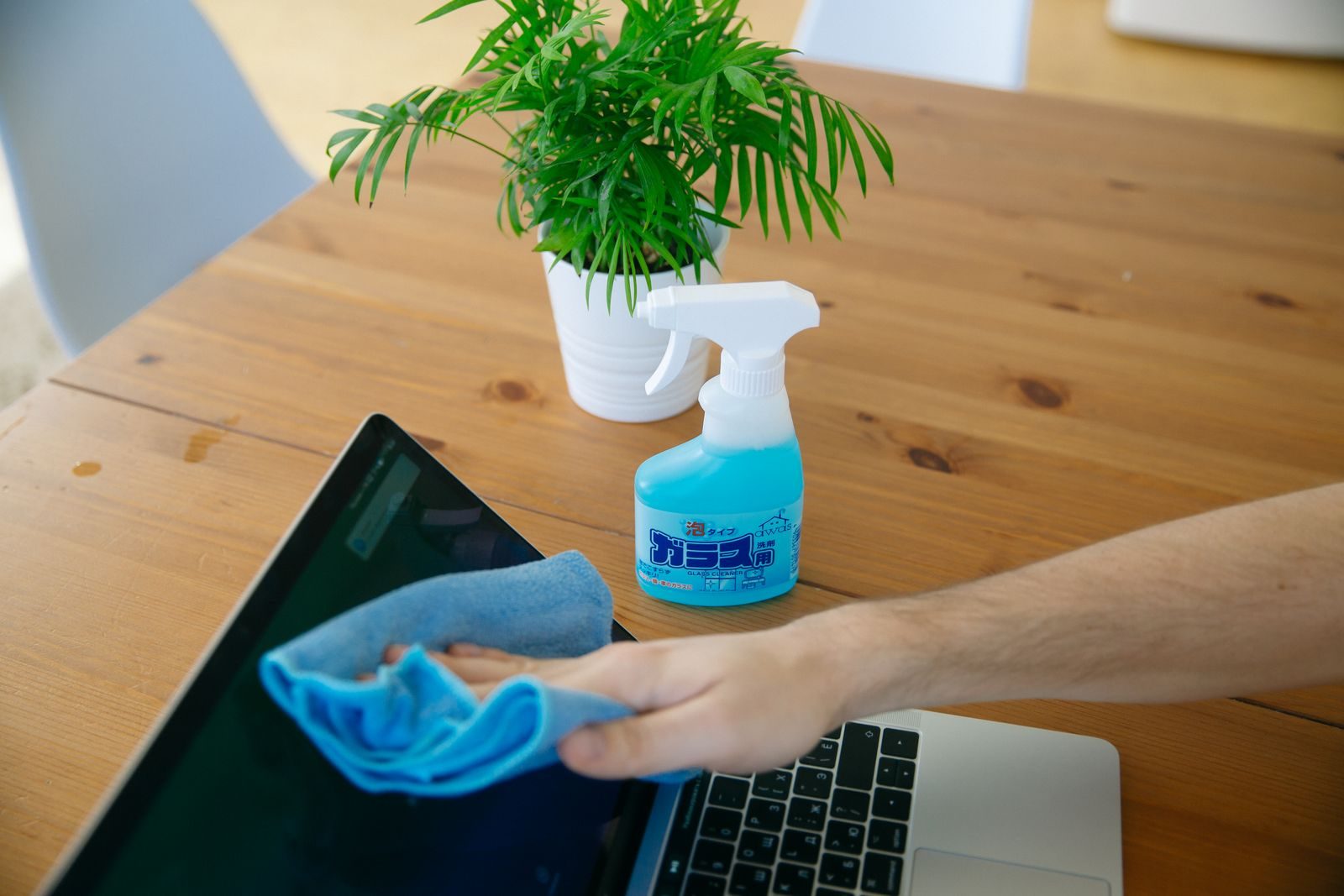
- Windex and other ammonia-based glass cleaners. These are made for windows, not coated displays. Ammonia strips anti-reflective coatings and discolors the screen over time.
- Rubbing alcohol used freely. A light wipe with 70 percent isopropyl alcohol is acceptable for stubborn spots, but regular use can dry out and damage coatings. Plain water should be your default.
- Liquid sprayed directly on the screen. Droplets run down into the bezel, where they can reach the electronics behind the panel. Major manufacturers agree: Apple’s official cleaning guide, for example, warns against spraying liquid directly onto the product and using cleaners that contain acetone or hydrogen peroxide.
The rule of thumb is simple: if a product is not labeled safe for screens, do not use it on a screen.
Step-by-Step: The Streak-Free Cleaning Method
These seven steps cover how to clean laptop screen glass safely on any modern machine, from budget Chromebooks to premium ultrabooks. Set aside five minutes and follow them in order.
- Shut the laptop down and unplug it. A powered-off screen shows dust and smudges far more clearly against the black display, and it removes any risk of electrical issues while you wipe.
- Brush off loose dust first. Use a soft brush or a gentle puff from an air blower to sweep dust off the screen and bezel edges, so loose grit does not drag across the glass in the next step.
- Wipe with a dry microfiber cloth. Using light, even pressure, wipe in slow horizontal strokes from one side to the other. For light dust, this step alone is often enough.
- Dampen the cloth, never the screen. If smudges remain, lightly moisten a clean microfiber cloth with distilled water or your screen-safe spray. It should feel barely damp, not wet.
- Wipe fingerprints in gentle circles. Work in small circular motions over the smudged areas with almost no pressure. Let the damp cloth do the work; pressing hard does not clean better and risks the panel.
- Dry with a second clean cloth. Follow immediately with a dry microfiber cloth in straight horizontal strokes. Removing the last film of moisture before it air-dries is the secret to a streak-free finish.
- Inspect against the light. Tilt the screen toward a lamp or window and look for leftover streaks. If you see any, repeat steps 4 through 6 on those areas only.
How to Remove Stubborn Smudges and Sticky Spots
Dried-on fingerprints, food splatter, and sticky residue need patience, not stronger chemicals. If a mark survives the steps above, the basic rule for how to clean laptop screen panels does not change: no harsh chemicals, no scrubbing, just a little more time and moisture.
Hold the lightly dampened cloth against the spot for about ten seconds to loosen it, then wipe gently in circles. For a spot that still will not move, dampen the cloth with a 70 percent isopropyl alcohol solution instead of water and repeat only on that spot, then finish with the dry-cloth pass. Never scrape with your fingernail, a card edge, or anything sharp: scratches in the anti-glare coating are permanent and catch the light at every angle.
Cleaning Tips for Matte, Glossy, and OLED Screens
The water-and-microfiber method above works for all display types, but each has its own cautions.
Matte screens have a textured anti-glare coating that traps oils, so fingerprints look worse. The good news is the texture hides small scratches well. Wipe a little longer in gentle circles rather than pressing harder.
Glossy screens show a sharper picture but act like mirrors for dust and fingerprints. Streaks are more visible too, so the dry-cloth finishing pass matters most here.
OLED screens deliver stunning contrast, but their panels and coatings are the most delicate. Use the lightest possible touch, keep the cloth only barely damp, and skip the isopropyl alcohol unless the manufacturer allows it. If you are buying a new laptop, display type is worth comparing up front, and our roundup of the best laptops for students notes the screen type on each pick.
When in doubt, check your laptop maker’s support page for model-specific guidance before trying anything beyond water and a microfiber cloth.
How Often Should You Clean Your Screen?
For most people, a quick dry wipe once a week and a full damp clean once a month is plenty. Touchscreen laptops and machines used by kids may need a damp clean every week or two, since fingers leave far more oil than a keyboard ever does.
A dirty screen is often a symptom of a dusty machine overall. If your laptop is also running hot or the fan is loud, it may be time for a deeper clean, and our guide on how to clean your laptop fan walks through that process safely.
Frequently Asked Questions
Can I use Windex or glass cleaner on my laptop screen?
No. Glass cleaners like Windex contain ammonia, which strips the anti-glare and oleophobic coatings on modern laptop displays. The screen may look fine after one wipe, but repeated use leaves it cloudy and discolored.
What is the safest liquid for cleaning a laptop screen?
Distilled water. When you look up how to clean laptop screen safely, nearly every manufacturer gives the same answer: distilled water on a soft microfiber cloth, with nothing fancier needed. Tap water leaves mineral streaks, and anything stronger risks the coatings.
Can I use baby wipes or wet wipes on my screen?
No. Baby wipes and disinfectant wipes contain lotions, fragrances, and chemicals that leave a film on the display and can damage coatings. They are made for skin and hard surfaces, not delicate screen coatings.
Is it safe to clean a touchscreen laptop the same way?
Yes. Touchscreens have an oleophobic coating that repels fingerprints and wears down over time no matter what. Gentle cleaning with water and microfiber preserves it longer than harsh cleaners, which strip it quickly.
Why does my screen still look streaky after cleaning?
Streaks usually come from three things: a dirty or greasy cloth, tap water minerals, or moisture left to air-dry. Wash your microfiber cloth, switch to distilled water, and always finish with a dry-cloth pass in straight strokes.
Should I clean the screen while the laptop is on?
Always power it down first. A black, powered-off screen makes dust and smudges far easier to see, and it removes any small risk of electrical problems or accidental clicks while you wipe.
Key Takeaways
- Dry microfiber cloth first, then a cloth barely dampened with distilled water.
- Dampen the cloth, never spray liquid directly onto the screen.
- Never use paper towels, tissues, Windex, or ammonia-based cleaners on a display.
- Use light pressure and gentle circles; pressing harder does not clean better.
- Finish with a dry-cloth pass in straight strokes for a streak-free result.
Conclusion
A clean screen makes every laptop feel newer, and it takes less than five minutes to do right. Now you know how to clean laptop screen displays safely: dry microfiber first, distilled water second, harsh chemicals never. Keep a clean cloth in your laptop bag and give the display a quick wipe each week.